Cari Blog Ini

Diberdayakan oleh Blogger.
Tampilkan postingan dengan label APPLICATIONS. Tampilkan semua postingan

How to Migrate from Windows to a Chrome OS

If you have already looked into buying a Chromebook, you probably noticed how limited the internal storage is on most of them. Seriously, who can get by with 16GB of internal storage?! The answer--most people.

One fantastic aspect of Chrome OS is that it pushes you to be device independent by expecting you to utilize Google services for cloud storage. Device independence means that you aren't reliant or locked into a single device. Did you just smash your Chromebook? No problem, just access your data from almost any other device with an internet connection until you replace it.

Because Google pushes Chromebook users to become device independent, most individuals barely use the limited internal storage on their Chromebook. Instead, they upload their data to the appropriate could-based Google service.

Most individuals can divide their data into five categories; Music, Photos, Videos, Books, and Documents. Google gives you free storage for each of these categories, which makes migrating from a Windows computer a breeze.

Music: Google Play Music

Google allows you to upload 20,000 songs for free! If you have more than 20,000 songs, it is probably time to clean unwanted music out of your library anyways. If you are worried about exceeding the 20,000 songs, remember that any music purchased through Google Play Music does not count towards your 20,000 song upload limit.
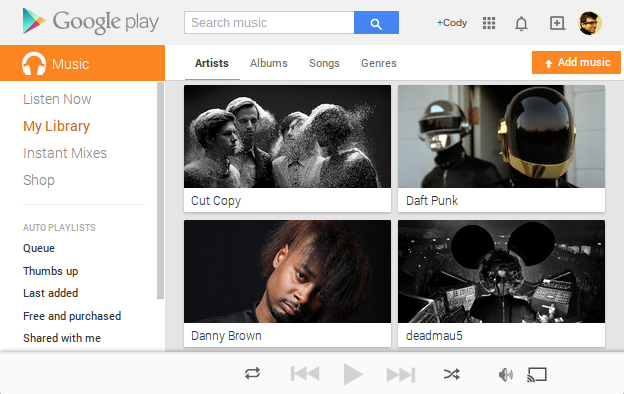
To upload your music, go to Google Play Music and press the "Add Music" button. Drag your entire "Music" folder from Windows Explorer into the Add Music window. For those of you who don't always get your music legitimately, you know who you are, look for more music in your Downloads folder.

Uploading music can take a long time, especially if your internet connection is slow. Get ready to sit back and wait.

Pictures and Videos: Google+ Photos

If your photos are less than 2048x2048 pixels, Google allows unlimited photo uploads to Google+ Photos. If your photos are larger than 2048x2048 pixels, Google+ Photos will automatically offer to scale the photos to qualify for unlimited photo uploads. 

Additionally, Google+ Photos allows unlimited video uploads for videos less than 15 minutes long. 
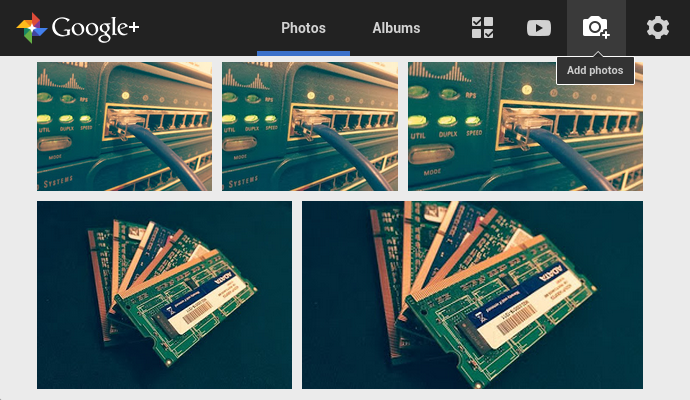
Understandably, you may want to keep some higher quality photos above 2048x2048 pixels or videos longer than 15 minutes. In this case, any the photos larger than 2048x2048 pixels or videos longer than 15 minutes count towards your "Drive Storage."
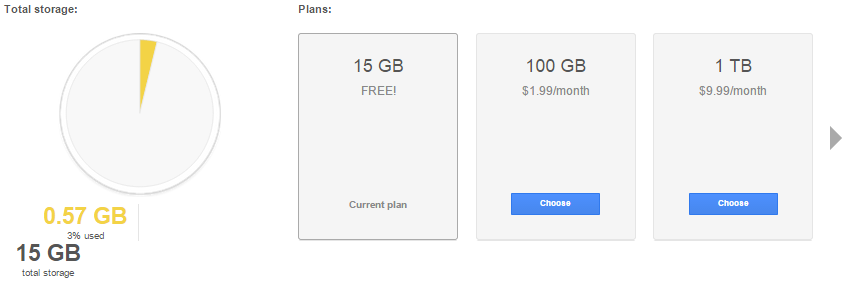
Every Google account automatically gets 15GB of Drive Storage. However, if you need more space, additional storage is fairly inexpensive. Drive Storage consists of Photos larger than 2048x2048 pixels and videos longer than 15 minutes inside of Google+ Photos. Additionally, all email in your Gmail account and all files uploaded to Google Drive count towards your Drive Storage.

Videos (again): YouTube

YouTube, we have all heard of it. However, most people just consume content and never upload their own. If you have videos over (or under) 15 minutes long that need to be stored online, look at storing them on YouTube. 

Google places strict guidelines on what can be uploaded, so YouTube is not the place to upload the latest season of Game of Thrones or any kinky bedroom videos. However, if you have some home videos, go ahead and upload them. Who knows, you may be sitting on the next viral cat video.
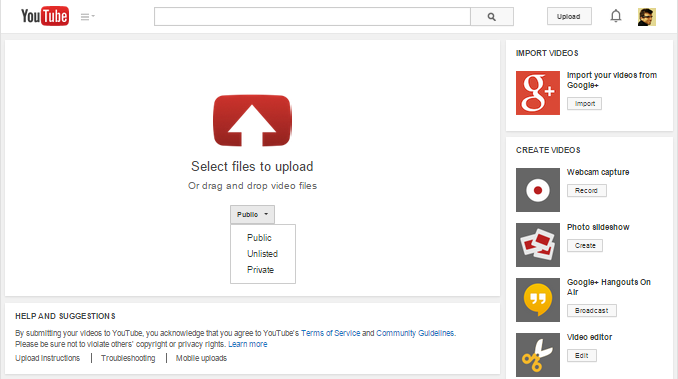
YouTubeIf you are concerned about privacy, you can set the privacy setting to private so only select individuals can view your video.

eBooks: Google Play Books

Google Play Books allows you to upload up to 1000 PDF or EBUP documents smaller than 100MBs each. If you're a person that likes to read eBooks on your phone, tablet, or computer, you can upload your eBooks to Google Play Books to read your book from any device. Additionally, you can switch between devices and pick up right where you left off.
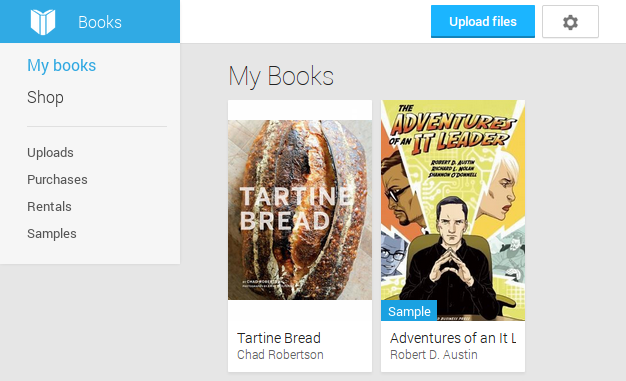
 Google Play Books
Furthermore, all books, magazines, and comics purchased through Google Play Books are accessible from your library and do not count towards your 1000 document upload limit.

Everything Else: Google Drive

Google Drive is essentially where all your documents and miscellaneous files get stored. However, you have to be conscious of this space because files uploaded to Google Drive count towards your Drive Storage limit. However, files made with Google apps like Google Docs, Sheets, Slides, Drawings, etc. do not count towards your storage limit. You can have as many of them as you want.
 Google Drive
If you are migrating from Windows, utilize the other Google services mentioned in this post first. Remaining files should be uploaded to Google Drive if you want to keep them.

You could not utilize any other Google services and just upload all your files to Google Drive. However, because individuals only get 15GBs of Drive Storage, this is not a viable free option for most people. You could just pay for expanded Drive Storage so you could upload all your files, but then you will not be able to utilize the features of other Google services.


That is all there is to it. After everything is uploaded to Google services, you can log into your Chromebook and have instance access to all your files.

Have any questions about the Chrome OS environment? Tell us about it in the comments below.


Use a USB-to-Serial Adapter on a Chromebook with Beagle Term

Use a USB-to-Serial Adapter on a Chromebook with Beagle Term
I love my Acer C720 Chromebook. However, as a Network Administrator I was constantly having to switch over to my Windows laptop to use a USB-to-Serial adapter to configure networking equipment. At least until I discovered an application called Beagle Term for Chrome.

Beagle Term

Platform: Google Chrome
Price: Free

What is it?

Beagle Team a serial terminal emulator, written entirely in JavaScript and can be added to any device that supports Google Chrome Apps--For instance, Chrome OS. Additionally, it is lightweight, easy to use, open-source, and free!

Bottom Line

Beagle Term is a necessity for anyone that has to use USB-to-Serial adapters--especially with a Chromebook. In my experience, not only is it super easy to install (you press one button), but it is much easier than connecting to a serial interface with PuTTY on a Windows device.

Have any great Chrome apps that you don't know how others can live without? Or have anything to add about Beagle Term? Tell us about it in the comments below.

How to Use Perk TV with Multiple Phones

 How to Make a Perk TV Phone Server Farm
Perk TV is an application for Android and iOS that pays you to watch ads. What sets Perk TV apart from other applications like this (e.g. Swagbucks) is that ads continually play without physical interaction (pressing buttons) for hours at a time. Taking advantage of this opportunity, you can easily buy some phones, install the app, and start earning passive income. Setup is easy, and you can be making $30+ per month per a phone starting right now!

Before you start, check to see if your internet service provider has a data cap, since streaming videos 24/7 chews up a lot of data.

Step One: Sign Up
Sign up for Perk TV

Step Two: Purchase Phones
If you are going to buy phones to run Perk TV, go with cheap Android devices that meet the minimum requirements for Perk TV. Currently, the requirements are just Android 4.0 or higher and WiFi. One of the most popular phones for running Perk TV is the Kyocera Hydro. At the time of this article the Hydros can be purchased on Amazon for about $30 and Amazon will buy the Hydros back for about $9. Because the Hydros earn around $1 a day, you would only have to run the phone for 21 days ($30 - $9) to break even if you choose to sell the phone back after that point. Anything afterwards is profit. Also note that you can have up to five phones per an account.

Step Three: Prep the Phones
To maximize earning potential on your phones you will want the following applications:
  • Perk TV - The application
  • Always On - Keeps the screen on
  • Screen Filter - Dims the screen to save electricity
Optional: If you root the phones you can freeze (disable) all unnecessary applications with Titanium Backup Pro to conserve resources for Perk TV.

Step Four: Setup
Plug your phones into a cheap surge protector or a multi-port usb wall charger near your wireless access point and you (Perk TV's terms and Conditions state that users must physically be in front of the phone(s) when using Perk apps). When you open Perk TV you have the option to play application trailers or movie trailers. Start with application trailers as they earn faster. The phone will automatically switch back to movie trailers after a while, but that's alright.

Step Five: Maintenance
Although not always required, reboot the phones once a day to prevent them from crashing. Phones can sometimes go days without a reboot, but it is better to reboot daily to avoid this risk.

Step Six: Earn and Redeem
That's it! Welcome to the world of perking!

I currently have four Kyocera Hydros that earn about $120+ dollars a month, which pays for my groceries. 

Using Perk TV already or coming up with ideas on how to set your phones up? Tell us about it in the comments section below. If you liked this article, check out my post on How to Make a Passive Income from an Idle Computer. Happy perking!


UPDATE: Perk TV now gives a prompt every 5 hours reading "Are you still watching?" Although annoying, it is not a huge inconvenience given the rewards you still get, and if you are physically in front of the phones when using Perk TV--like their Terms and Conditions state.

How I Get Free Music, TV Shows, Movies, and More (Legally)

How I Get Free Music, TV Shows, Movies, and More (Legally)As a broke college student it’s hard to legally get a hold of the digital products I want. Luckily, over time I have stumbled across ways to get these products legally and free or very cheap. This article discusses how I currently get my digital products.

HitBliss Free Pandora OneMusic
I have always preferred online streaming services like Last.fm and Pandora over purchasing albums or songs. However, the one thing I hated was the audio quality. When I listened to music in my car, the bass was painful to listen to. Additionally, deafening screeches or squeals commonly appeared when I turned up the volume. Luckily, I stumbled upon an application called HitBliss a couple weeks ago. HitBliss is an application that gives you rewards for watching ads. It took me just a few minutes after downloading the application to my phone to get a month subscription to Pandora One absolutely free--the high quality, ad free version of Pandora. I’ve been using Pandora One for a couple weeks now, and it has been wonderful. Now I am able to turn up the volume in my car without the deafening screeches or squeals and pretty decent bass.

TV Shows & Movies
Between school and work, I rarely have a chance to watch a show or movie when it airs on TV. Additionally, I don’t want to pay to stream something online if I’ll probably only watch it once. HitBliss saved me again. Not only can you order a Pandora One subscription on HitBliss, but you can also rent movies (including new releases) and purchase TV shows (usually the day after they air). It took less than twenty minutes of watching ads (I was actually watching YouTube on my computer while HitBliss ran on my phone) to earn enough credit to purchase three episodes of Suits and rent a movie. The application links to your Amazon account to make the purchases and rentals. One downside is that you are limited to four Amazon purchases/rentals a week. However, I've decided that there is no reason for me to watch more than four shows/movies a week, so I'm currently okay with this limit.

Google Opinion Rewards BalanceApplications
Honestly, most of the applications I use are either freeware or free web apps. However, this doesn't help for my phone. For that I use Google Opinion Rewards. Google Opinion Rewards is a free app in the Google Play Store that gives you Google Play credit for taking short surveys. About once a week a notification will prompt you to take a one to ten question survey. Afterwards, credit will be applied to your account. I’ve bought several Android apps this way. Additionally, this credit works for anything in the Google Play Store, including movies, TV shows, comics and books.

Books
I've never been much of a casual reader. If I read, it tends to be technical books that are hard to read digitally to start with. I've noticed that I can read these books much faster and comprehend a lot more when I have a tangible copy. Now I take advantage of my local library if I decide it’s not worth paying for. Furthermore, if my library doesn’t have the book I am looking for, they have a lending program where they can borrow books from participating libraries. I just tell them what I’m looking for, and they will have it shipped from a library that carries it at no cost to me. It is definitely work checking to see if your library participates in a program like this one. Not only is this program available for books, but also audiobooks and movies.

Smart Audiobook PlayerAudiobooks
Audiobooks are very important to me. I commute to work and school, so I like to listen to them during my drive. This wouldn’t be a big deal, but I listen to audiobooks at twice the normal speed or higher just because the readers talk so slow. Doing this allows me to listen to two or three full Audiobooks a week during my commute. However, there is no way I could pay for over a hundred audiobooks a year. The library has become my best friend again. Additionally, if I ever find myself waiting for an audiobook to come in, I just listen to public domain content through ezPDF Reader’s read aloud feature.

Video Games
Console gamers, I can’t help you. I'm a PC gamer and always will be. One of the reasons I’m a PC gamer is because it is so cheap. I've decided that I have no problem waiting for a new release to come on sale. I never buy a game if it isn't on sale or in a bundle. After all, my Steam library is packed for of games I haven't even downloaded yet. If I feel tempted to purchase a game at full price, I just get myself sucked back into TF2 and forget about the other game.

Conclusion
Overall, I’m happy with my methods for acquiring these products. Some of these methods have worked great for me for a long time. Have another method not listed here? Let me know in the comments below.

Browse the Web Anonymously on Android With Orbot

Anonymously Search on Android
From time to time you may want to look something up anonymously. That's okay, we won't tell anyone. Luckily, this isn't as hard as it seems with the help of an android app called Orbot. Orbot is a mobile version of Tor (The Onion Router), which encrypts traffic and then tunnels it through a series of computers around the world instead of using a direct connection.

Orbot

Platform: Android
Price: Free

Features

Orbot has many features. Some of which include:
  • Private Web Surfing when used in conjunction with  Orweb
  • Private Messaging when used in conjunction with ChatSecure
  • Privacy on Twitter with the official Twitter App

Bottom Line

Without root Orbot will work over WiFi networks, however, with root one can use Orbot with mobile data as well. Obviously running data through Orbot will decrease speeds, so it's probably not worth keeping on all the time. Even so, just the occasional search or so using Orbot is no big deal.

How to Earn Passive Income While Your Computer Idles

Pennies
As a general rule, passive incomes are time consuming to setup, but afterwards they earn money continually over time. However, rules can have exceptions which works in our favor in this case. With about five minutes of time, you can setup a well paying passive income with the help of some software called Gomez PEER. 

"Gomez PEER is a secure java application that runs in the background of your PC and leverages your system’s idle resources (such as unused processing power, RAM, and bandwidth) to test the performance of many of the world’s most popular websites."

"Users who download and run the Gomez PEER application make up a network of more than 150,000 individuals who, together, are helping to make the Internet a faster, more reliable tool for everyone."
You will be paid according to the number of minutes of Real Time Processing that is done. While pay rates are very low, what other program takes just a few minutes to set up and pays you to leave your computer on with no upkeep? And will pay month after month?

You may be wondering "Does it slow down my computer or internet speeds?"
No, it does not. Gomez PEER uses unnoticeable amounts of processing power, ram, and bandwidth to preform its tasks.

Now, what do you need to do to get started?  
  1. Apply to become a Gomez PEER. The application can be found here 
  2. Download Gomez PEER software.
  3. Install and run Gomez PEER.
That's it! Make sure Gomez PEER is setup to start running whenever your computer is turned on, and you're set!
Gomez Peer running
Now to maximize your earnings:
  1. Be connected to the internet as often as possible. 
  2. Gomez PEER allows multiple computers to be linked to one account (username). Take advantage of that by installing Gomez PEER on as many computers as you can and link them all to your account. 
  3. Got friends that are smart enough to jump on free money? Gomez PEER offers $1 for each referral.
My proof of payment from Gomez PEER

So what are you waiting for? You could be earning money right now! Have any other passive income streams? Let me know in the comments below. Also, do you have an old phone collecting dust? Learn how to increase your passive income with a Perk TV Phone Server Farm.